How to Download CapCut Video Without Pro? – Simple Guide for Everyone
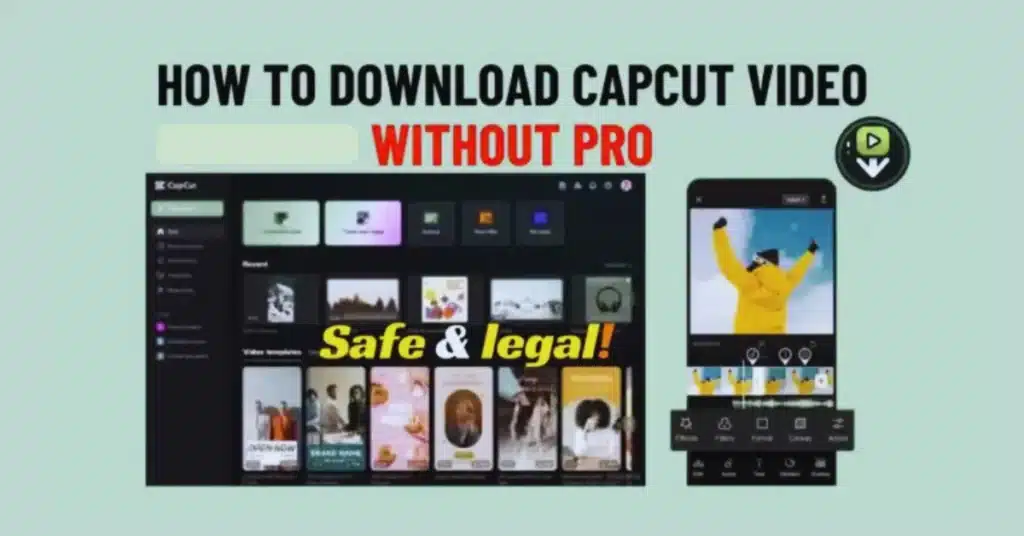
There are widespread beliefs that to download or export videos an individual needs to upgrade to CapCut Pro but this is not the case. CapCut already includes free exporting on Android, iOS, PC, and Mac. Still, some users get confused when they see a Pro icon or a paid effect, and they assume the whole export is locked behind a subscription. So let’s talk in a very clear and simple way about how you can download your CapCut video without using CapCut Pro at all.
This guide is useful whether you use CapCut for PC, CapCut for iOS, or even CapCut Old Version. And don’t worry, you don’t need any CapCut Mod APK or unsafe tools. Everything here is free and safe.
Why Some People Think They Need CapCut Pro to Download Videos
Well, the app shows many premium effects nowadays. So if you add a Pro filter, a Pro transition, or some cloud-based feature, CapCut may ask you to subscribe before you export the final video. That’s why people get confused. But the truth is simple: if you avoid Pro elements, you can download your video normally without paying anything.
Another reason is that some users try CapCut Pro APK Download Latest Version from random websites, and these versions sometimes break exporting completely. That creates more misunderstanding. So the key idea is: keep your project free of Pro items, and CapCut will let you export without any issue.
Step 1: Use Only Free Effects and Free Tools
Before downloading, take a small look at your timeline. Anything marked with a tiny Pro label needs a subscription. If you don’t want to pay, you must remove or replace those elements. CapCut gives many free tools, like:
- basic filters
- color grading
- text
- stickers
- transitions
- animation
- sound effects
- basic AI tools (in some regions)
Most creators use only free features and still get good results. If you want to check quickly, just tap each layer. If nothing shows “Pro,” then you’re safe to export.
Step 2: Export the Video Through the Normal Download Option
Once your project is free from Pro elements, exporting becomes almost too easy. On most devices, one only needs to tap on the Export button at the top-right corner of the interface. You can pick:
- 720p
- 1080p
- 1440p
- 4K
- 24fps
- 30fps
- 60fps
All these options work for free on many versions of CapCut, especially CapCut for PC. Some older devices may limit 4K, but that depends on hardware, not the Pro subscription.
When you tap Export, CapCut renders your video and saves it to:
- Gallery (Android)
- Photos app (iOS)
- Local folder (PC/Mac)
You don’t need CapCut Pro for this.
Step 3: Use CapCut PC Version for More Free Export Options
CapCut for PC gives more flexibility. Many users don’t know this, but CapCut PC actually offers more exporting quality for free than the mobile version. You can export:
- 4K Export
- Higher Resolutions
- Longer Videos
- Larger File Sizes
If your phone is blocking export because of storage or RAM issues, moving your project to CapCut for PC can solve it easily. The PC editor is free, and CapCut Pro is optional.
Another small tip: PC versions rarely ask for Pro when exporting. So if you keep facing issues on your phone, PC is a smoother backup plan.
Step 4: Remove Paid Templates Before Downloading
Some creators use TikTok templates inside CapCut. Many templates are free, but premium templates sometimes show a Pro icon. If you want a fully free download, just pick a free template or edit your own video manually. CapCut templates with no Pro tag can be downloaded without payment.
To check:
- Open your template
- Check for the “Pro” badge
- If it shows Pro, switch to another template
- Export again
This is the easiest way to avoid the Pro paywall.
Step 5: Make Sure You Are Using the Official Version
Sometimes people download CapCut Mod APK thinking it gives free Pro features. But honestly, these versions break exporting very often. They remove watermarks or unlock Pro icons, but when you try to export, you get errors like:
- “Couldn’t Export”
- “Try Again Later”
- “Render Failed”
Using the official CapCut app is always better. Even CapCut Old Version works fine for exporting, as long as it is from a trusted source.
Step 6: Clear Cache on Android if Export Keeps Failing
If CapCut won’t download the video even without Pro elements, follow this:
- open Settings
- go to Apps
- choose CapCut
- tap Clear Cache
- restart the app
This way corrects more problems than the users anticipate. It cleans your storage and makes CapCut export without any problems.
You can also restart the device and clear the cache again, in iOS, you cannot do it.
Step 7: Check Storage Space on Your Device
CapCut cannot export a video if your phone or PC is almost full. Even if your project is small, the rendering process uses temporary memory. So try to keep some free space:
- at least 1GB for short videos
- 4GB or more for longer or 4K videos
If your phone is too full, CapCut may show forced Pro prompts or error messages, but they aren’t about Pro—they’re about storage.
Step 8: Download Your CapCut Video Through TikTok (Optional Method)
You can directly export to Tik Tok in case you use a CapCut template that can be linked to Tik Tok. It may also include a Tik Tok watermark based on preferences, yet it still records the video without resorting to CapCut Pro.
Steps:
- open the template
- tap Use Template in TikTok
- finish editing
- save the draft
- download the video from TikTok settings
It is a suitable option in the case of a lot of users who simply require an expedited export.
Step 9: Use Screen Recording if Everything Else Fails
It is not the most classy way but it will get you through when all the others fail. If CapCut keeps blocking export for some strange reason, you can:
- play the video full screen
- turn on screen recording
- save it manually
Then crop out any black borders.
But honestly, this should be your last option because the quality might drop a little.
Why You Should Not Pay for CapCut Pro Just for Downloading
CapCut Pro gives nice extra tools, like premium fonts, special effects, cloud storage, and some AI editing features. But downloading or exporting your finished video is always free. Paying just for downloading makes no sense, and CapCut never requires payment for basic exports.
So the simple rule is:
If you avoid Pro elements, export is always free.
Conclusion
You don’t need CapCut Pro to download your videos. Just avoid using Pro effects, templates, or filters, and the export button will work normally on all devices. CapCut on PC provides even additional free export options and minor problems can be resolved by checking storage, cache, and updates to applications. No matter which operating system you have, Android, iOS, Windows, or Mac, you can freely and very easily download your CapCut video without paying.
FAQs
1. Can I export 1080p without CapCut Pro?
Yes, 1080p is fully free on almost all versions of CapCut.
2. Does CapCut Pro remove the watermark?
CapCut doesn’t add a watermark to normal exports, so Pro is not required.
3. Can I export 4K without paying?
Yes, especially on CapCut PC. Some phones limit 4K due to hardware.
4. Why does CapCut ask me to pay before exporting?
Because your project includes a Pro element. Remove it and export again.
5. Do I need Pro to export long videos?
No, long videos are free. Only cloud storage limits may force upgrades.
6. Is CapCut Mod APK good for exporting?
No, Mod APK versions often break export features and are unsafe.