How to Add Your Own Fonts to CapCut PC – Unlock Creative Text Styles 2026
Nice fonts make your video feel more personal, and honestly, they help your design stand out. Many creators like using their own style fonts for brand names, gaming edits, vlog titles, or even simple captions. CapCut PC already has many built-in fonts, but sometimes you want something special. So if you’re wondering how to add your own fonts to CapCut PC, the process is actually very easy.
Let’s walk through it step by step, in clean and simple words.
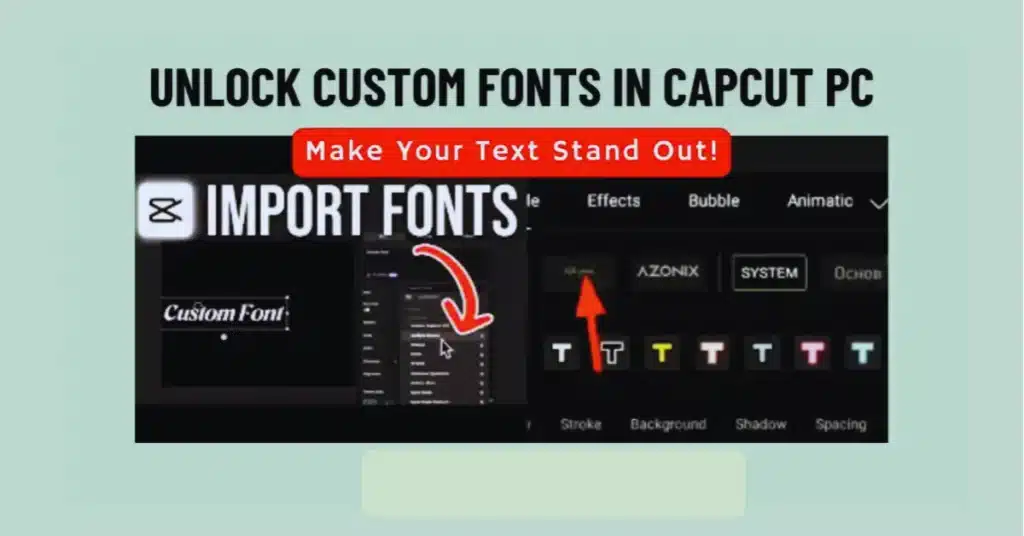
Why Add Custom Fonts to CapCut PC?
Different creators need different looks. There are those who desire a bold title, the others prefer low profile fonts and there are those who are fond of modern minimalism. Your videos will become more special with the help of custom fonts, in case you post on YouTube, Instagram, or Tik Tok.
People use custom fonts for:
- channel branding
- logo intros
- tutorial videos
- product videos
- aesthetic edits
CapCut PC works smoothly with most font files, even if you’re also using CapCut Pro APK, CapCut Old Version, or CapCut for Mac for other projects.
Step 1: Download a Font File
First, download the font you like. Most fonts come in:
- .TTF
- .OTF
Both work well with CapCut PC.
Trusted sources include:
- Google Fonts
- FontShare
- DaFont
- free font libraries
Before installing make sure that the file is clean and safe.
Step 2: Install the Font on Your Computer
CapCut PC reads fonts directly from your system. So you must install the font on Windows or Mac first.
On Windows:
- right-click the font
- choose Install
- wait a few seconds
On Mac:
- double-click the font
- click Install Font
- it appears in Font Book
Once installed, any app—including CapCut PC—can read the new font.
Step 3: Restart CapCut PC
CapCut PC detects new fonts only when you reopen the software.
- fully close CapCut
- open it again
- load your project
Now the custom font will appear inside the text list.
Step 4: Add Text and Select Your Custom Font
Here’s the simple part:
- click Text
- add text to the timeline
- open the Font section
- scroll down to “System Fonts”
- choose your newly installed font
CapCut PC will display it instantly.
Step 5: Adjust Styling
After the font has loaded it can be edited in a variety of ways:
- change color
- add shadow
- adjust spacing
- add stroke
- change opacity
- use glow effect
These small edits make your font look more stylish.
Step 6: Save Fonts for Future Use (Optional)
If you use the font often:
- save it in a preset
- save the project as a template
This helps maintain a consistent design in all your videos.
Common Issues When Adding Fonts
1. Font Not Showing in CapCut PC
Restart CapCut or reinstall the font file.
2. The Text Looks Weird After Installing
Some decorative fonts don’t support all characters.
3. CapCut Old Version Doesn’t Detect Fonts
Update to the latest version for better system font support.
4. Font Looks Blurry
Use 1080p or 4K preview so text stays sharp.
Extra Tips for Better Text Styling
- use bold fonts for titles
- use clean fonts for subtitles
- avoid using too many styles in one video
- keep color contrast strong for readability
- use shadows on light backgrounds
These small things help your edits look more professional.
Conclusion
It is quite easy to add your own fonts to CapCut PC. All you need to do is to download the font and install it on your system and restart CapCut after which it is available as a font in the text panel. No matter what platform you are editing on CapCut, be it PC, Mac, or you are a fan of changing CapCut Pro APK to online versions, custom fonts make your videos look even more special and stylish. That is a tiny step though it does enhance the overall design.
FAQs
1. Does CapCut PC support all fonts?
It supports most .TTF and .OTF fonts without issues.
2. Why isn’t my new font showing up?
You must restart CapCut PC after installing the font.
3. Can I use custom fonts on CapCut for mobile?
Yes, but the process is different from PC.
4. Do I need CapCut Pro to use my own fonts?
No, custom fonts work in the free version too.
5. Are fonts safe to download?
Yes, if downloaded from trusted font libraries.
6. Can I use the same font on CapCut for Mac?
Yes, CapCut for Mac also loads system fonts quickly.